


Send WordPress Activity Logs to Loggly
Use Activity Log Pro Log Channels to stream WordPress activity logs to Loggly in near real-time.
This gives you a centralized audit trail for security, troubleshooting, and admin activity monitoring.
Here’s a clean description you can use:
The Log Channels screen in Activity Log Pro shows a Loggly integration configured and active, enabling real-time forwarding of WordPress activity logs to Loggly. It highlights automatic log streaming, tamper-proof offsite storage, and asynchronous background delivery to ensure no impact on site performance.

The Loggly channel configuration screen in Activity Log Pro shows how to connect WordPress activity logs to Loggly using the HTTPS ingestion API. It includes fields for the customer token and optional tagging, along with step-by-step setup instructions for sending logs from WordPress to Loggly in real time.
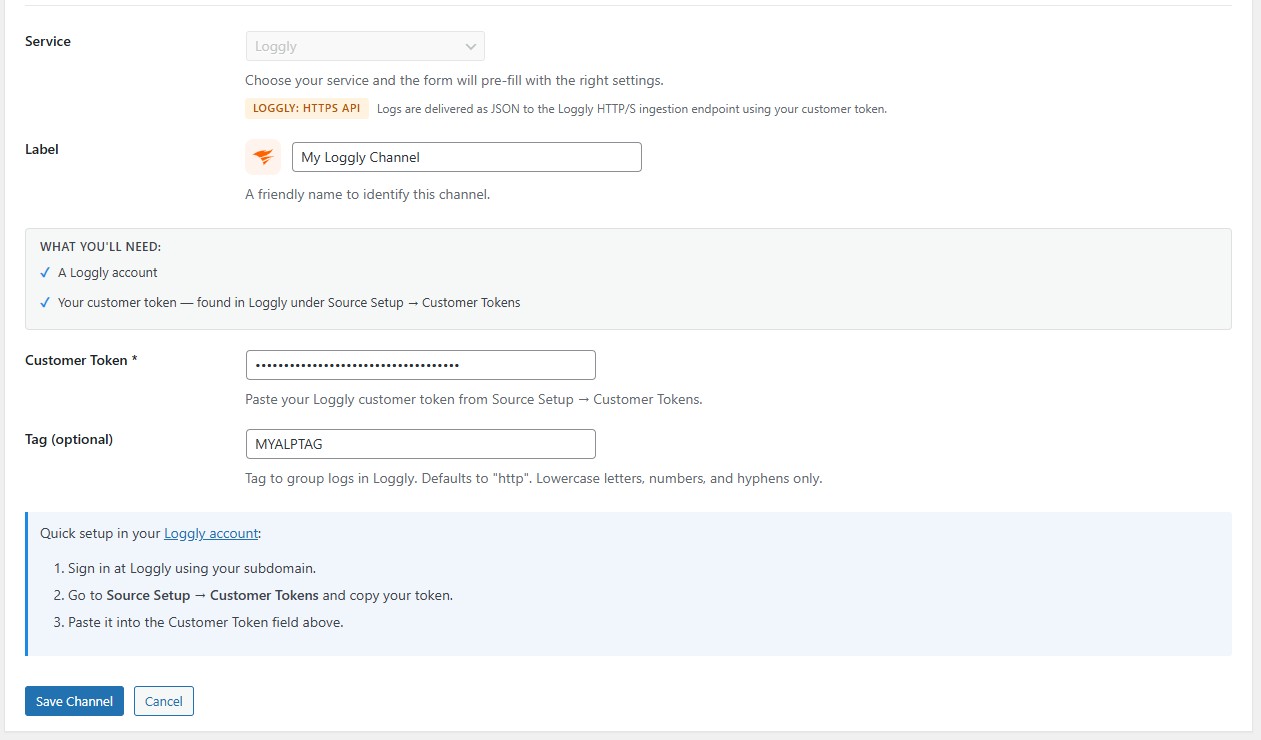
What this integration does
When the Loggly channel is enabled, each new WordPress activity event is queued and sent to Loggly as structured JSON.
Typical events include:
- User logins and failed logins
- Plugin/theme installs, activations, updates
- Content and settings changes
- User/account and role activity
Requirements
Before setup, make sure you have:
- Activity Log Pro Premium installed and activated
- A Loggly account
- Your Customer Token from Source Setup → Customer Tokens
Setup (step-by-step)
- In WordPress admin, go to Activity Log Pro → Settings → Log Channels.
- Click Add Channel.
- Select Loggly.
- Enter a label (example:
My Loggly Account). - Paste your Customer Token.
- (Optional) Add a Tag (default is
http). - Save the channel and make sure it is Enabled.
- Click Test on the channel row to send a test event.
Where to find your Loggly Customer Token
In Loggly:
- Sign in to your account.
- Go to Source Setup → Customer Tokens.
- Copy the token and paste it into the channel settings.
Verify logs in Loggly
After sending a test event:
- Open Loggly search.
- Start with a broad search.
- Filter by your configured tag (if set), then narrow by fields like
event_type,user_login, orsite_name.
Example payload
{
  "id": 12345,
  "timestamp": "2026-05-01 16:55:00",
  "event_type": "Login_failed",
  "object_type": "user",
  "user_login": "admin",
  "user_role": "administrator",
  "user_ip": "192.168.1.5",
  "description": "Failed login attempt for username: admin",
  "site_url": "https://example.local",
  "site_name": "Local Dev Site"
}
Recommended search ideas in Loggly
Use these as starting points:
- Failed logins: search for
Login_failed - Admin activity: search by
user_roleoruser_login - One site only: search by
site_nameorsite_url - Security-focused review: search for terms like
failed,deleted,role,plugin,theme
Performance and delivery behaviour
- Delivery is asynchronous (background queue), so normal admin activity is not blocked.
- Use the built-in Test button to confirm connectivity quickly.
- If delivery fails, channel error details are shown in Log Channels.
Troubleshooting
No logs appear
- Confirm channel is enabled.
- Re-check Customer Token.
- Use Test and check the response in the channel UI.
Test fails
- Token may be invalid or copied incorrectly.
- Confirm you used the Customer Token from Loggly (not another credential).
Logs are hard to group
- Set a clear channel Tag (for example
activity-log-pro). - Use consistent filters on
event_type,site_name, anduser_login.
FAQ
Will this slow down my site?
No. Events are queued and sent in the background.
Can I send logs to Loggly and other channels at the same time?
Yes. Multiple Log Channels can be active together.
Is tag required?
No. Tag is optional. If omitted, http is used by default.
Need help?
If setup fails, contact support with:
- Your Log Channel config (redact secrets)
- Test result/error message
- Example search query used in Loggly
Back to Log Channels.