


Send WordPress Activity Logs to Datadog
Use Activity Log Pro Log Channels to stream your WordPress activity logs to Datadog in near real-time.
This gives you centralized visibility for user actions, security events, and admin changes across one or many WordPress sites.
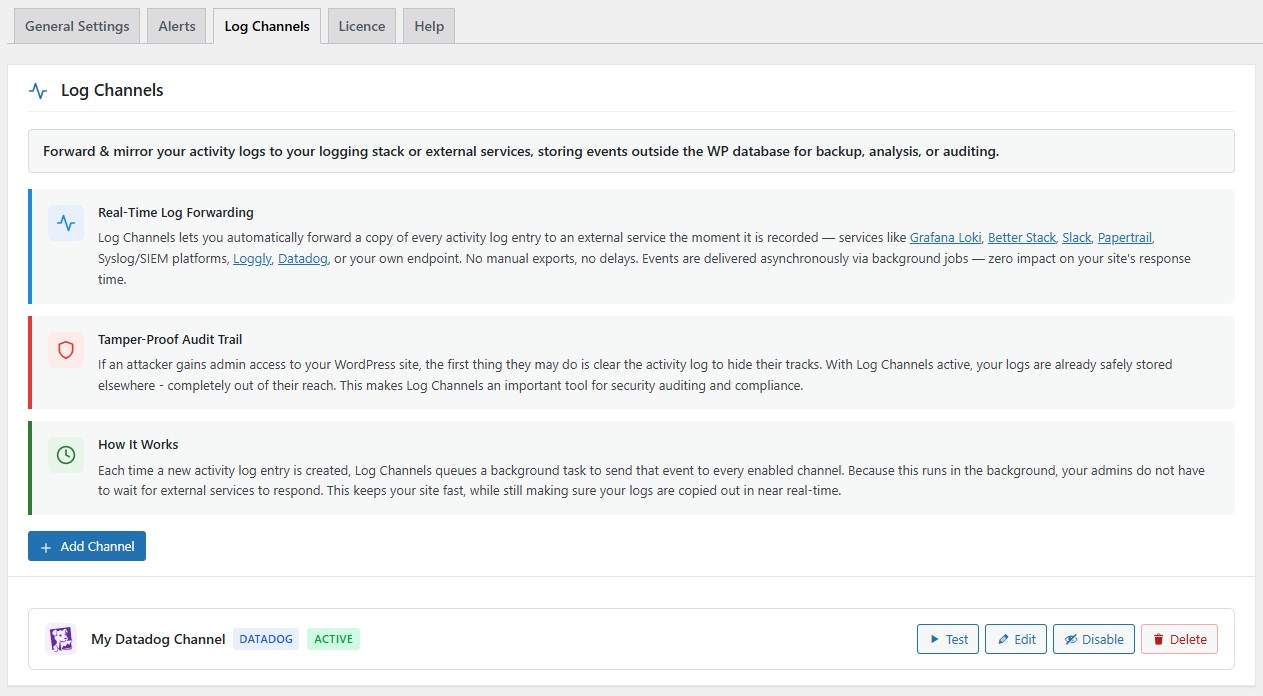
The Log Channels screen in Activity Log Pro shows a
Datadog integration configured and active, allowing WordPress activity logs to be streamed in real time to Datadog. It highlights real-time log forwarding, tamper-proof offsite storage, and asynchronous delivery with no impact on site performance.
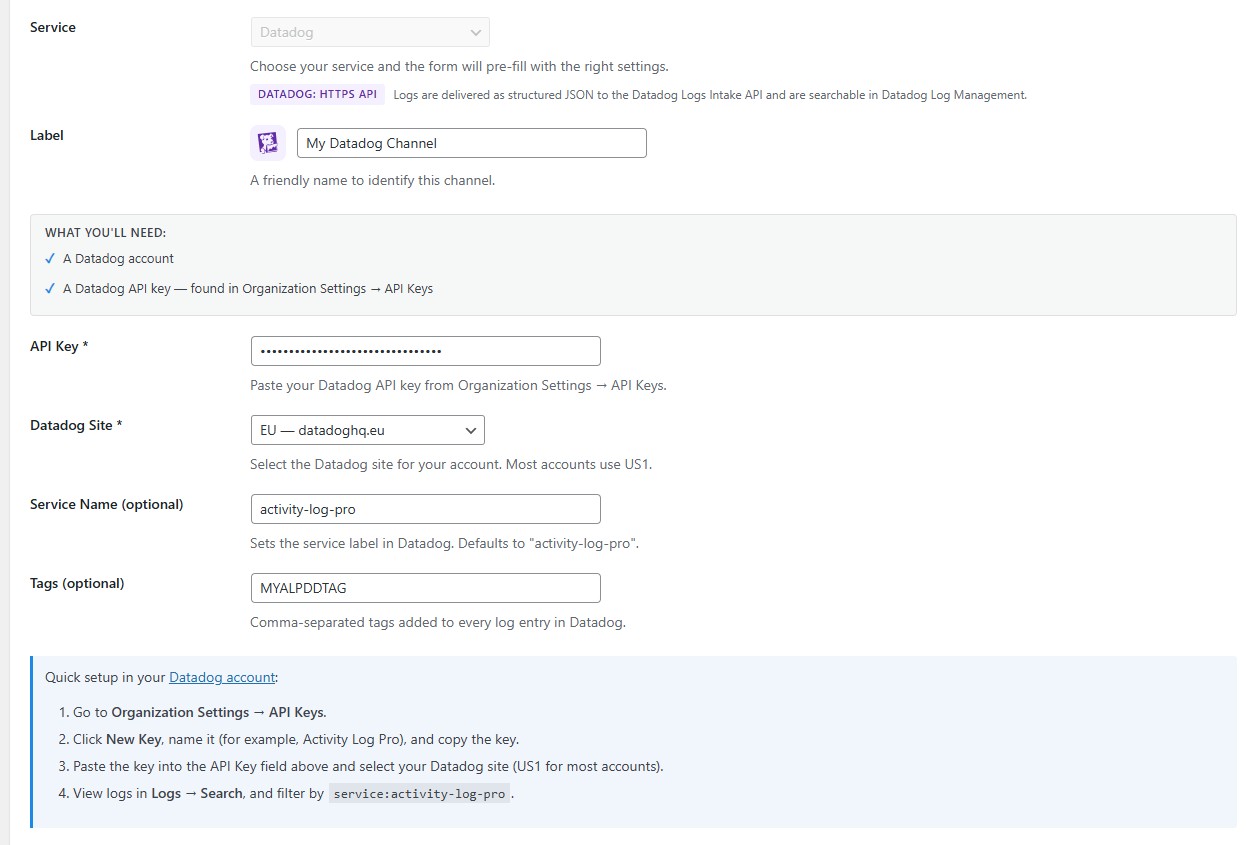
The Datadog channel configuration screen in Activity Log Pro shows how to connect WordPress to Datadog Logs using an API key. It includes settings for the Datadog site, service name, and tags, along with a quick setup guide for sending and viewing activity logs in Datadog.
What this integration does
When Log Channels is enabled for Datadog, each new activity event in WordPress is queued and delivered to Datadog Logs Intake as structured JSON.
Typical events include:
- User logins and failed logins
- Plugin/theme installs, activations, updates
- Content changes
- User/account and role changes
- Core settings changes
This is useful for security monitoring, auditing, troubleshooting, and agency multi-site operations.
Requirements
Before setup, make sure you have:
- Activity Log Pro Premium installed and activated
- A Datadog account
- A Datadog API Key from Organization Settings → API Keys
- Access to your WordPress admin as an administrator
Setup (step-by-step)
- In WordPress admin, go to Activity Log Pro → Settings → Log Channels.
- Click Add Channel.
- Choose Datadog from the service list.
- Enter a clear label (example:
My Datadog Account). - Paste your Datadog API Key.
- Select your Datadog Site (US1, EU, US3, US5, AP1).
- (Optional) Set Service Name (default:
activity-log-pro). - (Optional) Add Tags (example:
env:production,team:security). - Save the channel and ensure it is Enabled.
- Click Test on the channel row to send a test event.
Verify data in Datadog
In Datadog Logs Search, start with:
service:activity-log-pro
If you changed Service Name, query that value instead.
Helpful filters:
service:activity-log-pro @event_type:Login_failedservice:activity-log-pro @site_name:*service:activity-log-pro @user_login:*
Example log payload
Your exact payload varies by event, but entries generally look like this:
{
  "id": 12345,
  "timestamp": "2026-04-30 11:20:00",
  "event_type": "Login_failed",
  "object_type": "user",
  "user_login": "admin",
  "user_role": "administrator",
  "user_ip": "192.168.1.5",
  "description": "Failed login attempt for username: admin",
  "site_url": "https://example.com",
  "site_name": "Example Site",
  "message": "Failed login attempt for username: admin",
  "service": "activity-log-pro",
  "ddsource": "wordpress",
  "hostname": "example.com",
  "ddtags": "env:production,team:security"
}
Recommended Datadog queries
Use these as a quick starting point:
- All WordPress activity logs
service:activity-log-pro - Failed login events
service:activity-log-pro @event_type:Login_failed - Role and permission related activity
service:activity-log-pro (@description:*role* OR @event_type:*role*) - Plugin/theme change activity
service:activity-log-pro (@description:*plugin* OR @description:*theme*) - Agency or multi-site view (if streaming multiple sites)
service:activity-log-pro @site_name:*
Performance and delivery behavior
- Delivery is asynchronous (background queue), so it does not block normal admin page usage.
- You can use channel Test to validate connectivity.
- Delivery status and last errors are visible in the Log Channels interface.
- If Datadog is temporarily unavailable, failed deliveries are reported via channel error status.
Troubleshooting
No logs appear in Datadog
- Confirm channel is enabled.
- Re-check API Key.
- Confirm correct Datadog site (US1/EU/US3/US5/AP1).
- Use the channel Test button and check result.
Test fails
- API Key may be invalid/revoked.
- Datadog site selection may not match your account region.
- Outbound connectivity from your server may be restricted.
Logs appear but not as expected
- Verify your query includes the correct
servicevalue. - Remove extra filters and start with
service:activity-log-pro. - Add optional tags to improve filtering and grouping.
FAQ
Will this slow down my WordPress site?
No. Events are dispatched in the background to minimize impact.
Can I send logs to Datadog and another platform at the same time?
Yes. You can enable multiple channels simultaneously.
Can I centralize logs from many WordPress sites in one Datadog account?
Yes. Include and filter by site_name and site_url to separate or group sites.
Do I need OAuth to use this integration?
Current setup uses Datadog API Key authentication in Log Channels.
Need help?
If you run into setup issues, contact Activity Log Pro support with:
- Your channel configuration (redact secrets)
- Datadog site selected
- Test result/error message
- Example query used in Datadog
Back to Log Channels.